
 Posted by
Introduction
In the previous tutorial, we created an AWS MWAA environment and configured all required components such as S3 buckets, IAM roles, VPC settings, and CloudWatch logging.
Once the MWAA environment is ready, the next step is understanding how to upload and execute a DAG.
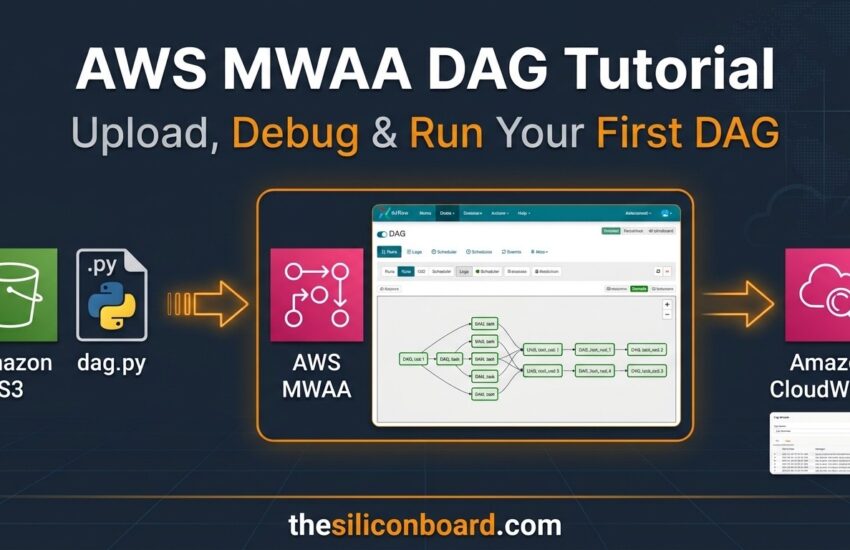
In this tutorial, we’ll upload a Python DAG file to Amazon S3, verify that AWS MWAA detects it, troubleshoot potential issues using CloudWatch, and finally run the workflow from the Airflow UI.
Prerequisites
Before starting, ensure you already have:
✅ Running AWS MWAA Environment
✅ S3 Bucket
✅ DAGs Folder
✅ IAM Role
✅ Access to Airflow UI
Opening the Airflow UI
Navigate to your AWS MWAA environment.
Open the environment and locate:
Open Airflow UI
Clicking this link launches the Apache Airflow interface.
One interesting thing you’ll notice is that the MWAA Airflow UI looks exactly like a self-managed Apache Airflow installation.
AWS manages the infrastructure, but the user experience remains identical.
Creating a Simple DAG
To demonstrate DAG execution, create a simple DAG file.
You can write your own DAG manually or generate a sample DAG using AI tools such as Copilot.
Example workflow:
Start
↓
Extract Data
↓
Transform Data
↓
Load Data
↓
End
testm.py
Remember:
The file extension must be .py and not .txt otherwise Airflow will ignore the file.
Uploading the DAG to Amazon S3
Navigate to the S3 bucket used by your MWAA environment.
Open: dags/ folder and upload testm.py. Once uploaded, the DAG becomes available for processing by MWAA.
Understanding DAG Detection Delays
One thing that surprises many beginners is that DAG detection is not always immediate.
After uploading the file:
❌ Don’t panic if it doesn’t appear instantly.
AWS MWAA requires time to:
- Sync the DAG folder
- Process the DAG
- Validate Python code
- Register the workflow
According to the demonstration, DAG synchronization can sometimes take several minutes. This delay is normal.
Finding the DAG ID
Every Airflow DAG contains a DAG ID.
Example:
dag_id="multi_component_demo_dag"
This identifier is important because:
- Airflow displays DAGs using this name
- Searches are performed using the DAG ID
- Logs often reference the DAG ID
If you cannot find your workflow in Airflow UI, verify the DAG ID first.
Common Reasons a DAG Does Not Appear
Incorrect File Extension
Wrong:
testm.txt
Correct:
testm.py
Missing Dependencies
If your DAG imports packages that aren’t installed:
import requests
or
import pandas
MWAA may fail to parse the DAG.
Install dependencies using:
- requirements.txt
- startup.sh
Python Syntax Errors
Even small mistakes can prevent DAG registration.
Examples:
- Missing colon
- Incorrect indentation
- Import errors
CloudWatch logs typically reveal these issues.
Running the DAG
Once MWAA successfully detects the workflow:
- Open Airflow UI
- Search for the DAG
- Open the DAG details page
- Click:
Trigger DAG
No advanced configuration is required for a simple demo.
Airflow will begin execution immediately.
Verifying Successful Execution
Successful execution typically shows:
✅ Green task indicators
✅ Completed workflow graph
✅ Successful task status
If every task turns green, your DAG is running correctly.
Key Takeaways
Before executing DAGs in AWS MWAA:
✅ Upload DAG files into the correct S3 dags folder
✅ Use .py file extension
✅ Verify the DAG ID
✅ Be patient while MWAA detects the DAG
✅ Use CloudWatch for debugging
✅ Trigger the DAG from Airflow UI
🎥 Watch the Complete Video Tutorial
Prefer learning visually?
Watch the full walkthrough where we upload a DAG, troubleshoot delays, analyze CloudWatch logs, and run the workflow from the Airflow UI.
Final Thoughts
Uploading and executing DAGs is one of the first hands-on skills every Airflow engineer should master.
The most important lesson from this tutorial is that troubleshooting is part of the process. When a DAG doesn’t appear immediately, CloudWatch logs can save hours of guesswork.
With your MWAA environment running and your first DAG successfully executed, you’re now ready to build more realistic workflows involving ETL pipelines, APIs, databases, and data transformation tasks.
Related AWS Tutorials
Understanding AWS IAM Policies with Real AWS Examples
AWS MWAA Tutorial for Beginners: Create Your First MWAA Environment