 Posted by
Introduction :
In this blog we shall explore the process of connecting VS Code with AWS EC2 instance. Now, why this is important? In my last project I was working on the task where I had to write a Python code inside aws EC2 instance. Therefore, I need to get into the machine and write long lines of code and I had no idea how long it will be. Had it been a small code then I would have had no problem in using the conventional ways.
Click here of the youtube tutorial of this topic.
The Three Conventional ways :
- Session Manager : This will open a browser and inside the browser there will be vim/vi editor. This method has two bottle necks. Firstly, the browser may end the session, then again you have to loging again. Secondly, the vim/vi will not give you the first hand experience.
- Vim using SSH: Using this method, we can get into ssh shell of the EC2 instance and then we can start VIM. The only prerequisite is the we need to have the pem file. The problem with vi/vim is that it does not have autocomplete, Python debugger and other GUI based editor features.
- VS Code : We can connect VS code with aws EC2 instance by following some process which we shall know in this blog, so that all the rich features of it can be available.
Steps to connect VS Code with AWS EC2 instance:
I shall assume that we have the pem file and ec2 is in running state.
Step 1: Get user name and ip/hostname:
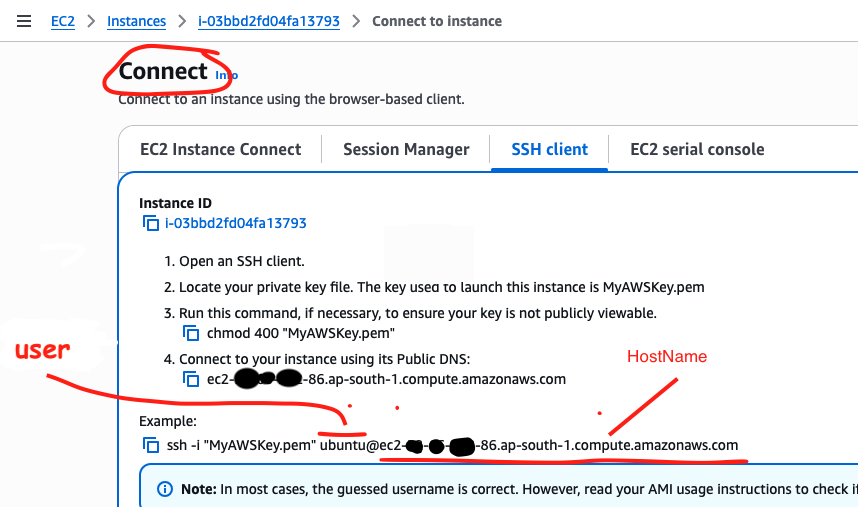
We can also use the public ip:

Step 2 The Pemfile location:
The pemfile must be under /Users/username/.ssh/ folder when in mac, C:\Users\username\.ssh\ in windows. IF we do not keep the pem file under the specified folder, we may observe permisson issue. Therefore, it may cause bottleneck to VS code.
Step 2 Config file of mac:
Host AWSEC2
    HostName ec2-xx-xx-xxx-86.ap-south-5.compute.amazonaws.com
    User ubuntu
    IdentityFile /Users/username/.ssh/mypemfile.pem
Config file of Windows
Host AWSEC2
    HostName ec2-xx-xx-xxx-86.ap-south-5.compute.amazonaws.com
    User ubuntu
    IdentityFile C:\Users\username\.ssh\mypemfile.pem
Step 3 Visual Studio Code Settings:
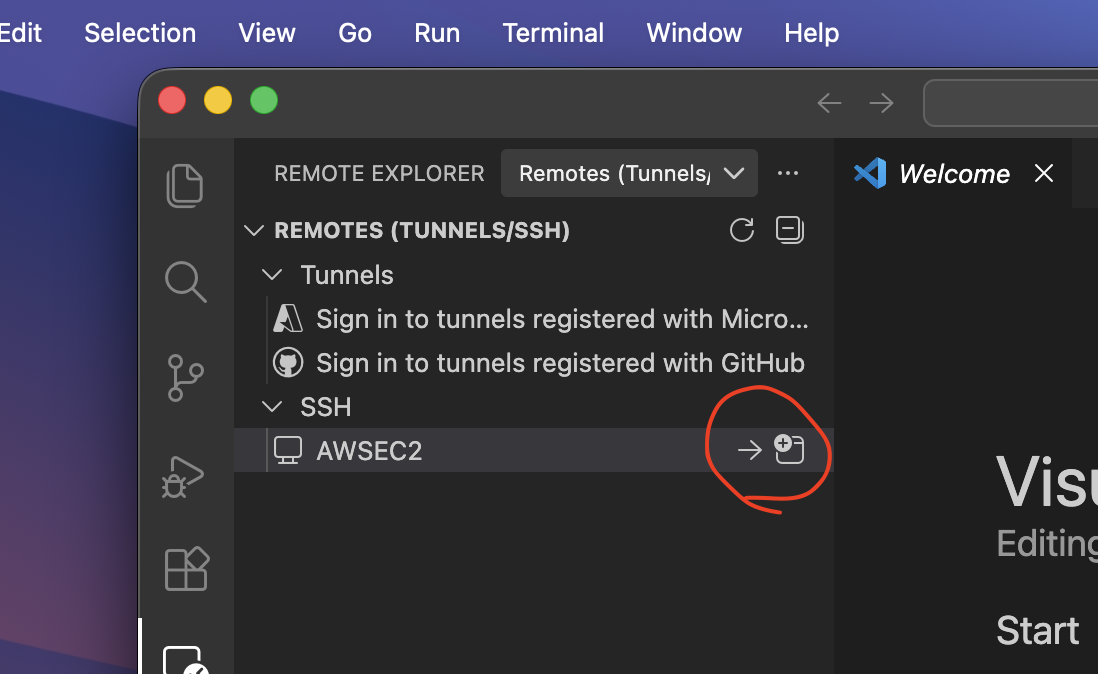
Go to remote explorer, then in the primary side bar, under SSH, we shall see the same host name as we have mentioned in the config file.
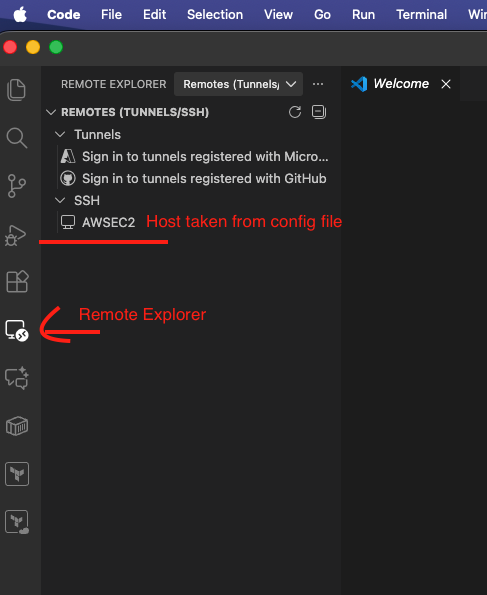
Click on the right arrow as shown in the image below:
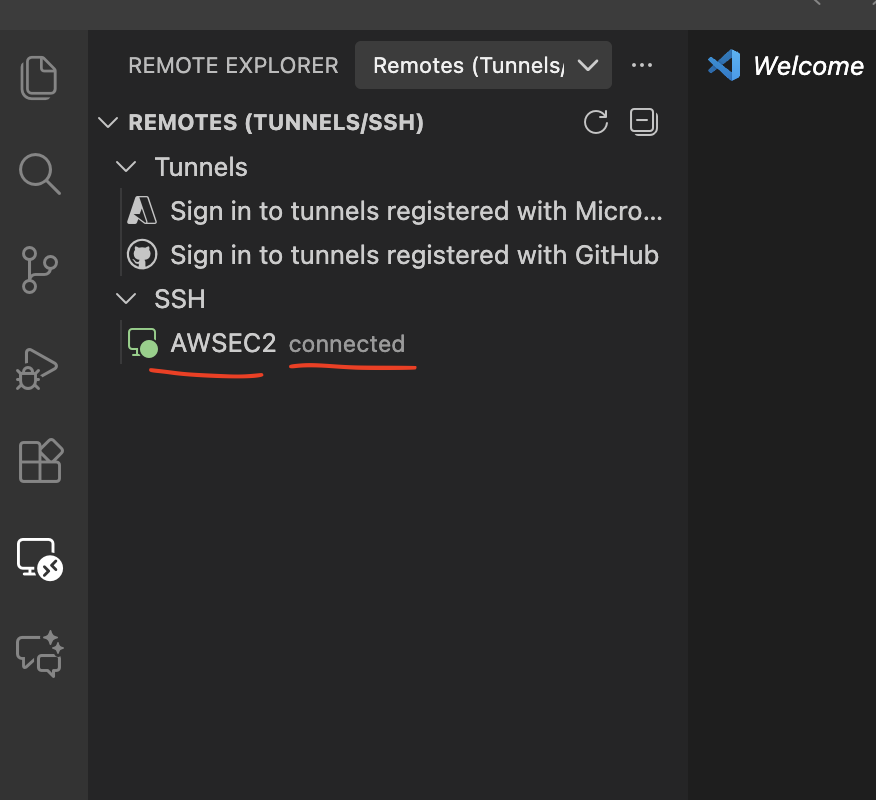
When we open the Primary side bar again, we can see that VS Code is connected to EC2 instance as shown in the image below:
Conclusion of connecting VS Code with AWS EC2 instance :
Accessing AWS EC2 file from VS code or in otherwords, directly having a connection with EC2 for writing and editing code from local VS Code will enable us to have rich set of editing features provided by it. Therefore, this becomes an important tool to develop code which other wise is not possible.
A few months back I had published a blog about the process of connecting docker container to vscode. Here is the link, you can have a look.